In my case desktop machine was based on HP Compaq pro 6300, Windows 8 x64 as
client OS with latest patches and SCCM client 2007 sp2 with latest hotfix
http://support.microsoft.com/kb/2750782 for
Windows 8 support. SCCM client was not reporting the data from hardware
inventory agent. Hardware inventory agent was not able to query data from CCM_SystemDevices,
here is a part from inventory agent log:
<![LOG[Collection: Namespace = \\.\root\cimv2\sms; Query = SELECT __CLASS, __PATH, __RELPATH, CompatibleIDs, DeviceID, HardwareIDs, IsPnP, Name FROM CCM_SystemDevices; Timeout = 600 secs.]LOG]!><time="15:47:12.788+-60" date="01-17-2013" component="InventoryAgent" context="" type="1" thread="4232" file="collectiontask.cpp:347">
<![LOG[Failed to add an instance of class CCM_SystemDevices to historical store: 8004100A]LOG]!><time="15:47:12.851+-60" date="01-17-2013" component="InventoryAgent" context="" type="3" thread="4232" file="collectiontask.cpp:452">
<![LOG[Failed to AddReport() for CCM_SystemDevices class to historical store: 8004100A]LOG]!><time="15:47:12.851+-60" date="01-17-2013" component="InventoryAgent" context="" type="3" thread="4232" file="collectiontask.cpp:458">
<![LOG[Collection: (80040900) Failed to update Data Store]LOG]!><time="15:47:12.851+-60" date="01-17-2013" component="InventoryAgent" context="" type="3" thread="4232" file="invcommon.cpp:190">
<![LOG[Raising event:
[SMS_CodePage(437), SMS_LocaleID(1033)]
instance of CLIMSG_HINV_WARNING_QUERYFAILURE
{
ClientID = "GUID:9A76A26F-6A41-48D8-A094-41B897D61069";
Data1 = "SELECT __CLASS, __PATH, __RELPATH, CompatibleIDs, DeviceID, HardwareIDs, IsPnP, Name FROM CCM_SystemDevices";
Data2 = "";
Data3 = "";
DateTime = "20130117144712.851000+000";
InventoryActionID = "{00000000-0000-0000-0000-000000000001}";
MachineName = "machinename";
ProcessID = 4876;
SiteCode = "sitecode";
ThreadID = 4232;
};
]LOG]!><time="15:47:12.851+-60" date="01-17-2013" component="InventoryAgent" context="" type="1" thread="4232" file="event.cpp:525">
<![LOG[Failed to process instances of CCM_SystemDevices: 80040900]LOG]!><time="15:47:12.851+-60" date="01-17-2013" component="InventoryAgent" context="" type="3" thread="4232" file="collectiontask.cpp:361">
<![LOG[Collection: Cycle failed: 80040900]LOG]!><time="15:47:12.851+-60" date="01-17-2013" component="InventoryAgent" context="" type="3" thread="4232" file="collectiontask.cpp:271">
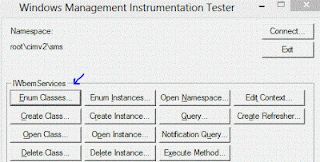
In order to find out why the query does not successfully finish, I have started wbemtest and connected to \\.\root\cimv2\sms and enumerate classes recursively:


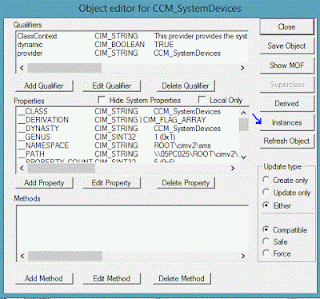
 Double click to see the properties, since everything is blank
click on Show MOF:


After installing Windows 7 version of the driver, SCCM 2007 Inventory Agent has successfully finished and reported to SCCM server.
<![LOG[Collection: Namespace = \\.\root\cimv2\sms; Query = SELECT __CLASS, __PATH, __RELPATH, CompatibleIDs, DeviceID, HardwareIDs, IsPnP, Name FROM CCM_SystemDevices; Timeout = 600 secs.]LOG]!><time="15:47:12.788+-60" date="01-17-2013" component="InventoryAgent" context="" type="1" thread="4232" file="collectiontask.cpp:347">
<![LOG[Failed to add an instance of class CCM_SystemDevices to historical store: 8004100A]LOG]!><time="15:47:12.851+-60" date="01-17-2013" component="InventoryAgent" context="" type="3" thread="4232" file="collectiontask.cpp:452">
<![LOG[Failed to AddReport() for CCM_SystemDevices class to historical store: 8004100A]LOG]!><time="15:47:12.851+-60" date="01-17-2013" component="InventoryAgent" context="" type="3" thread="4232" file="collectiontask.cpp:458">
<![LOG[Collection: (80040900) Failed to update Data Store]LOG]!><time="15:47:12.851+-60" date="01-17-2013" component="InventoryAgent" context="" type="3" thread="4232" file="invcommon.cpp:190">
<![LOG[Raising event:
[SMS_CodePage(437), SMS_LocaleID(1033)]
instance of CLIMSG_HINV_WARNING_QUERYFAILURE
{
ClientID = "GUID:9A76A26F-6A41-48D8-A094-41B897D61069";
Data1 = "SELECT __CLASS, __PATH, __RELPATH, CompatibleIDs, DeviceID, HardwareIDs, IsPnP, Name FROM CCM_SystemDevices";
Data2 = "";
Data3 = "";
DateTime = "20130117144712.851000+000";
InventoryActionID = "{00000000-0000-0000-0000-000000000001}";
MachineName = "machinename";
ProcessID = 4876;
SiteCode = "sitecode";
ThreadID = 4232;
};
]LOG]!><time="15:47:12.851+-60" date="01-17-2013" component="InventoryAgent" context="" type="1" thread="4232" file="event.cpp:525">
<![LOG[Failed to process instances of CCM_SystemDevices: 80040900]LOG]!><time="15:47:12.851+-60" date="01-17-2013" component="InventoryAgent" context="" type="3" thread="4232" file="collectiontask.cpp:361">
<![LOG[Collection: Cycle failed: 80040900]LOG]!><time="15:47:12.851+-60" date="01-17-2013" component="InventoryAgent" context="" type="3" thread="4232" file="collectiontask.cpp:271">
In order to find out why the query does not successfully finish, I have started wbemtest and connected to \\.\root\cimv2\sms and enumerate classes recursively:
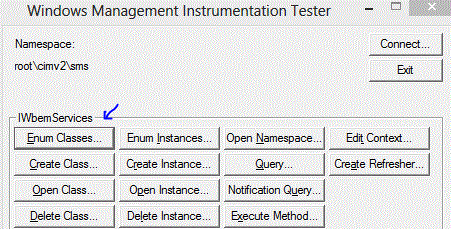

Find the CCM_SystemDevices from top level classes
(double click):
Show Instances:
There was empty row with <no key> which was causing SCCM
client Inventory Agent to fail:

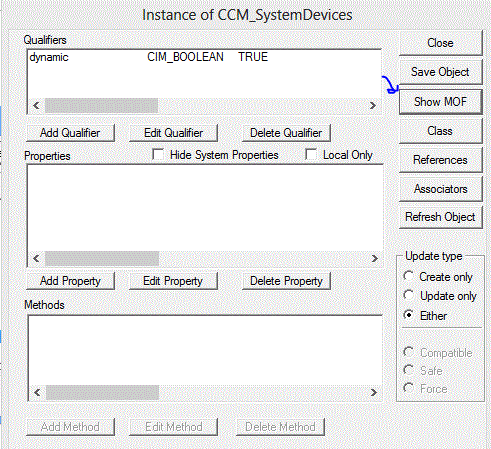
MOF will show unprintable character \n "new
line" in the name:

From the properties
of the USB3.0 extensible Host Controller from device manager there was
nothing suspicious:
I tried to update the driver, but there were no new versions
to download. I have also checked Intel to download driver for USB
3.0 eXtensible
Host Controller, but there were no new drivers for Windows 8, but there was a
version of this driver for Windows 7. So, I have applied the not recommended
way and applied Windows 7 drivers. Check http://plugable.com/2012/12/01/windows-8-and-intel-usb-3-0-host-controllers/ .
New version of the driver from Windows 7 looks like:

After installing Windows 7 version of the driver, SCCM 2007 Inventory Agent has successfully finished and reported to SCCM server.


